The boxes screen
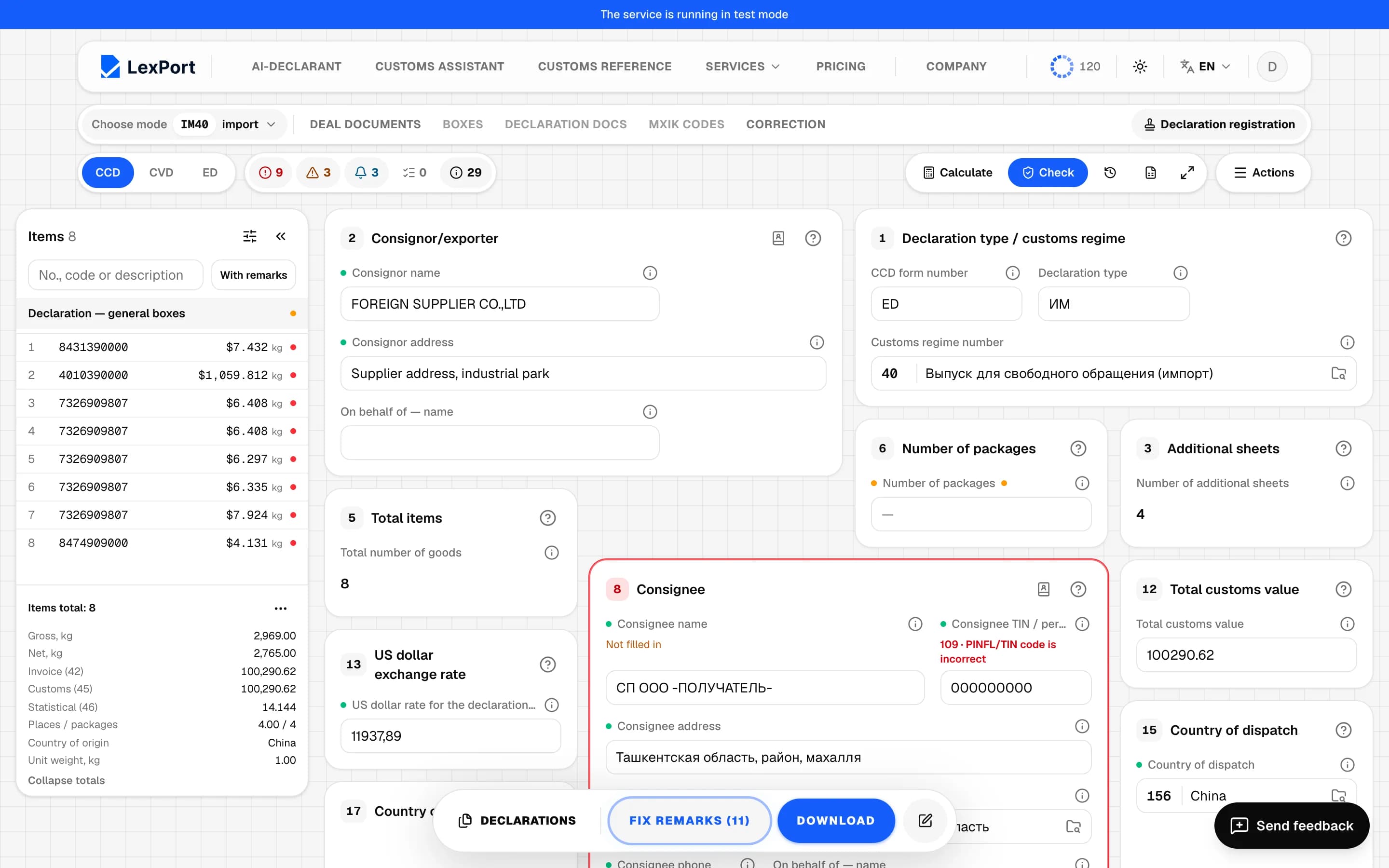
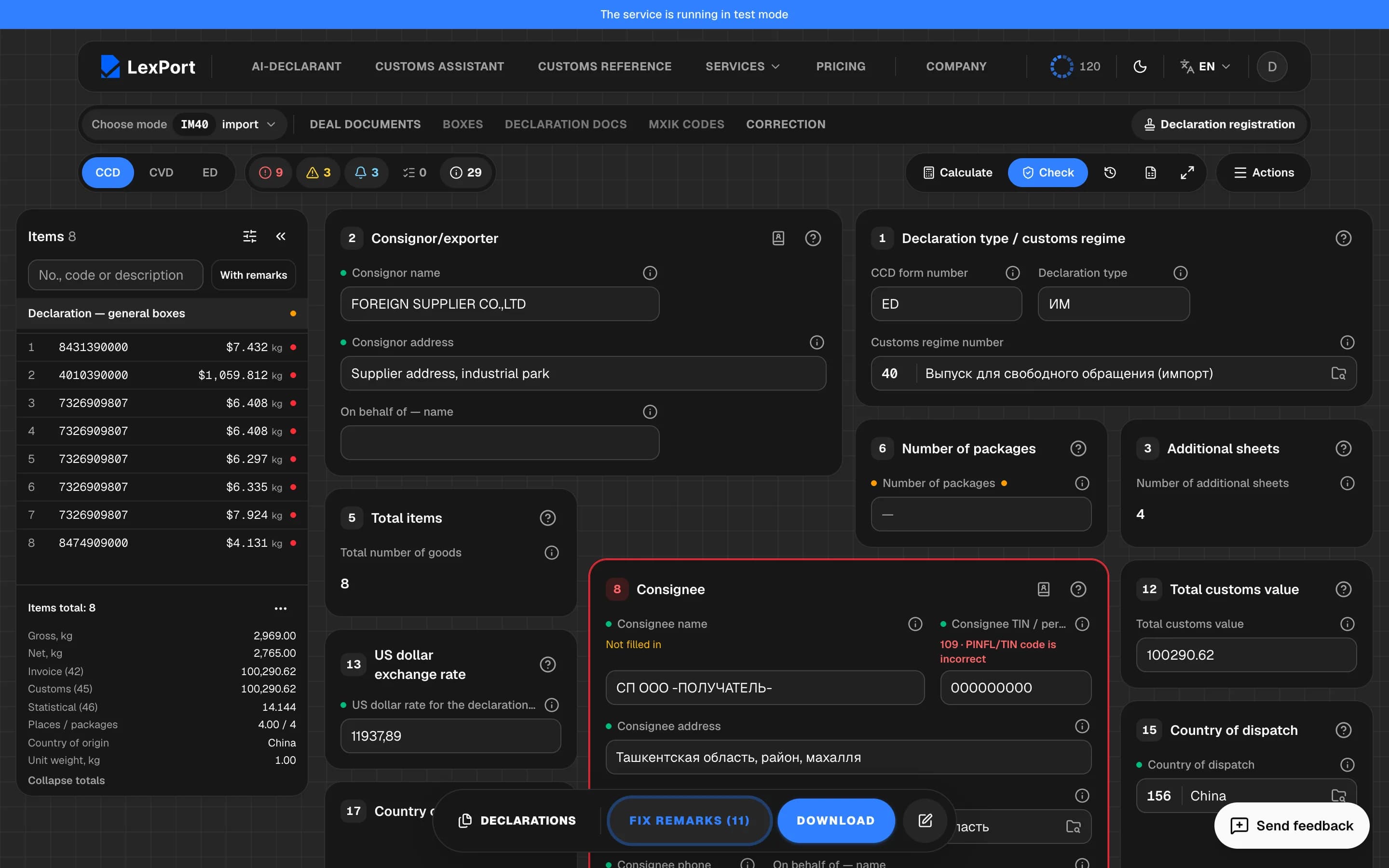
The top bar, declaration sheets, the goods column, box cards and the bottom panel.
The boxes screen holds the whole declaration exactly as it will go into the file: the numbered boxes of the form, by sheet and by item.
Deal sections
The topmost bar holds the sections of one deal:
- Choose mode — the declaration regime, for example IM40.
- Deal documents — uploaded invoices, CMRs and other documents.
- Boxes — this screen.
- Declaration docs — applications, reports, invoice and document list.
- MXIK codes — item codes from the classifier.
- Correction — correcting the declaration.
Sheets and counters


Below that is the sheet switcher:
- CCD — the main sheet: declaration header, boxes 1–30, B, C, 48–54.
- CVD — the customs value declaration, if there is one.
- ED — the list of electronic documents.
An amber dot on a sheet means there's something on it to review.
Next to it are the remark counters. Click any of them to open the error list on the matching tab:
| Counter | What it means |
|---|---|
| Errors | Will block submission — must be fixed. |
| Warnings | Worth checking; submission isn't blocked. |
| Reminders | Something to attach or do. |
| Document cross-check | Box values differ from the deal documents. |
On the right are the Calculate and Check buttons, edit history, Excel export, the Full screen toggle and the Actions menu with all other commands. If a command isn't available right now, it doesn't disappear from the menu: it's grayed out, with the reason shown on the right.
Form view
Full screen shows the sheet like a paper form — no header or panels, and field labels move into tooltips. To go back, press Normal view or Esc. Your choice is remembered.
Goods column
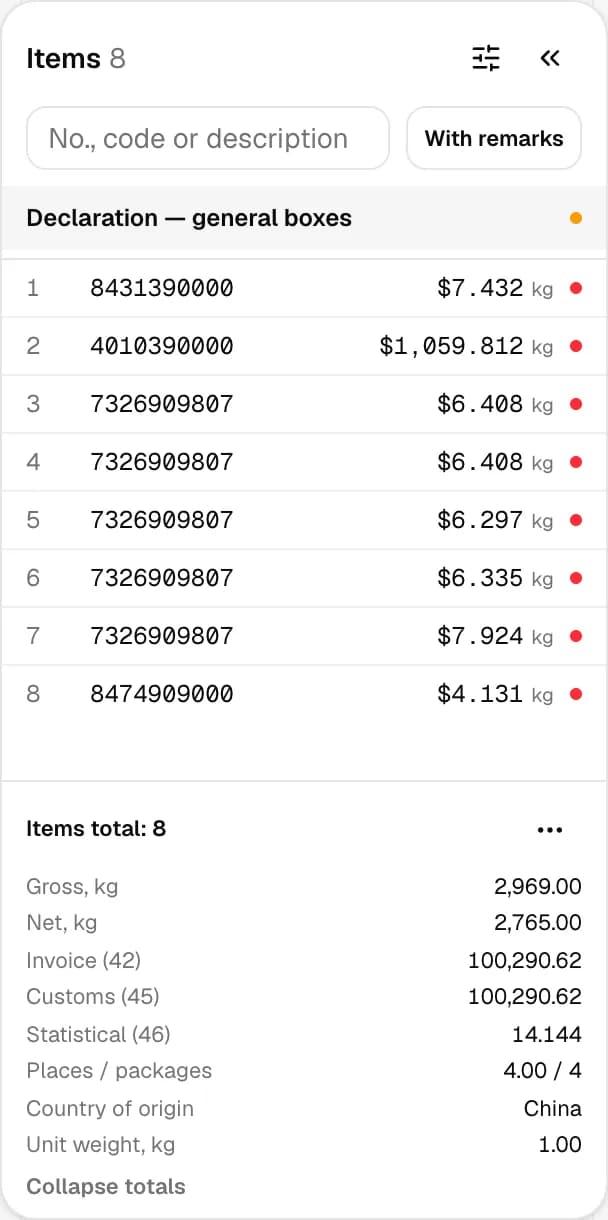
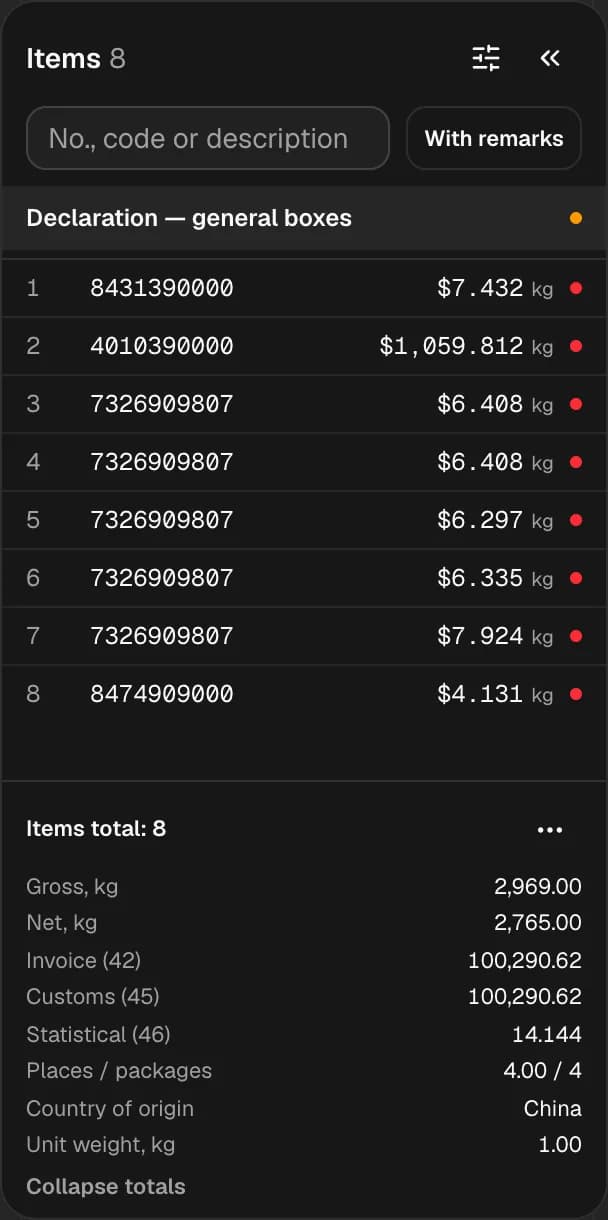
On the left is the list of items in the declaration: number, HS code and a status dot. A red dot means the item has errors; amber means there's something to review.
- The Declaration — general boxes row takes you back to the main sheet.
- Search finds an item by number, code or name; Enter opens the first match.
- With remarks leaves only items that have remarks.
- At the bottom are totals: number of items, gross, net and customs value. All totals shows the rest. If you select several items, totals are calculated for the selection.
More in Goods.
Box cards
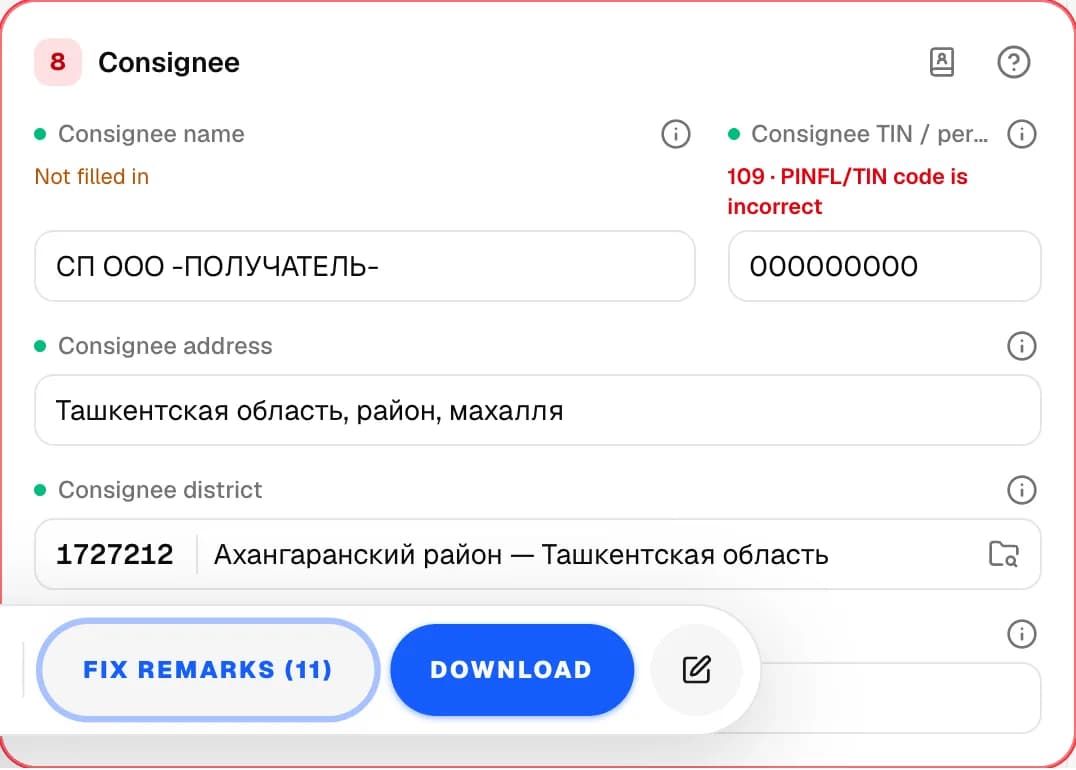
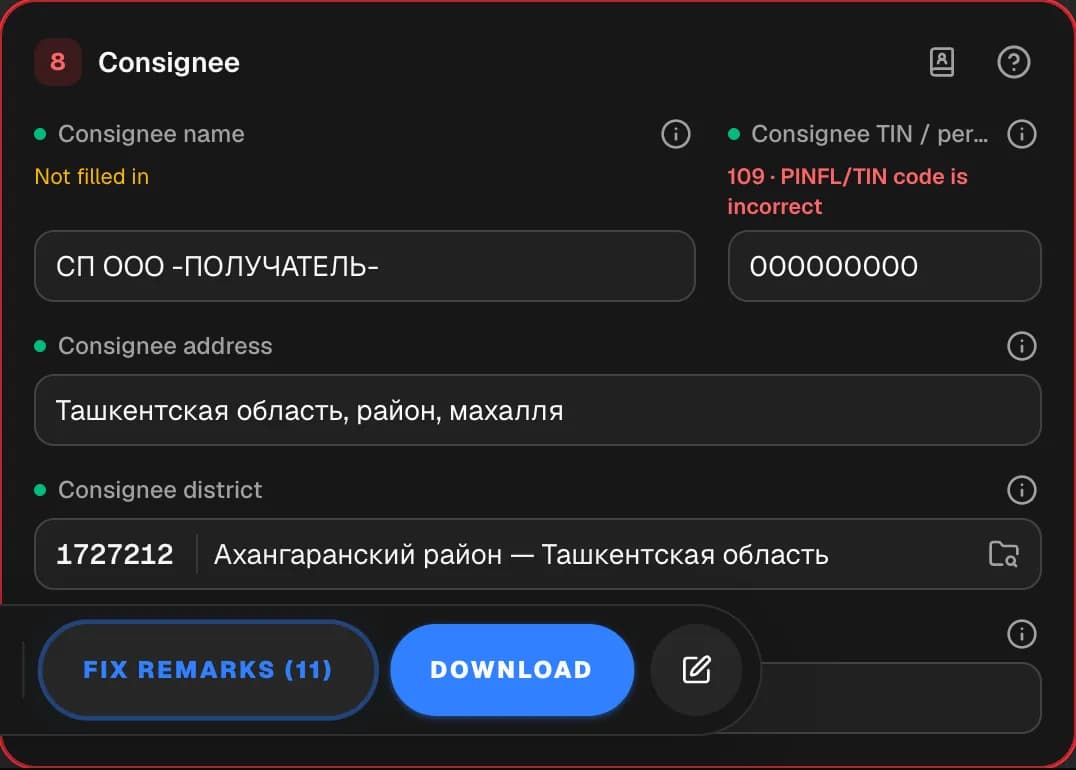
Each box is a card with its number and name. The ? button in the corner opens help for the box (F1). A box with an error has a red outline. If a value differs from the document, it's marked differs from document — hover over the mark to see what the document says.
Bottom panel
- Declarations — a list of your deals, to jump to another one quickly.
- Fix remarks — appears when required data is missing and opens the error list.
- Download — XML, submission package, Excel and printing.
- The pencil button — New declaration.