Checks and errors
The Check button, the error list, Fix, and what blocks export.
Check
The Check button saves your edits, checks the declaration and opens the Error list. Below the title is the result with its time: green if there are no errors, red if there are. Any edit clears the "checked" mark — check again before exporting.
Error list
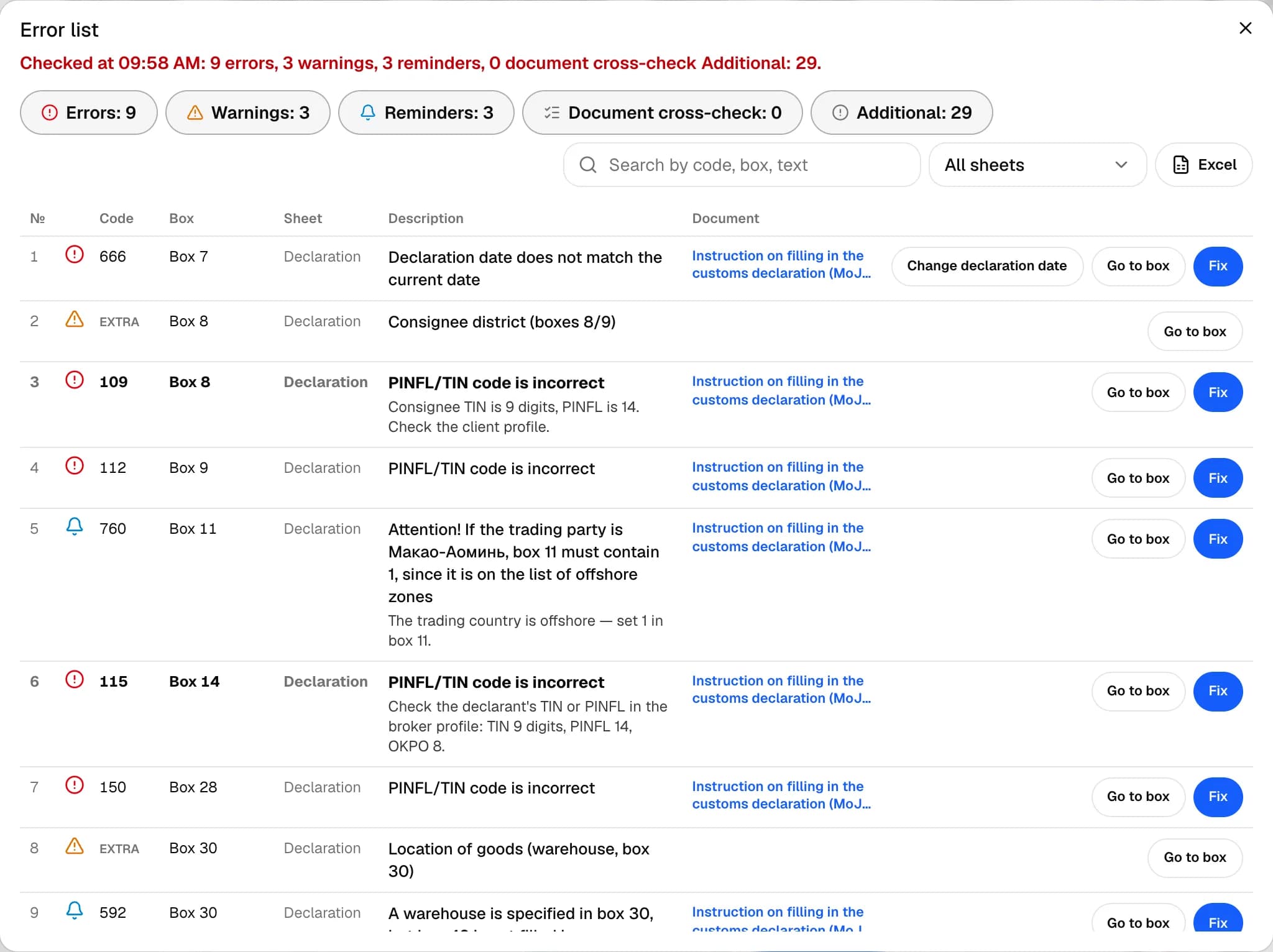
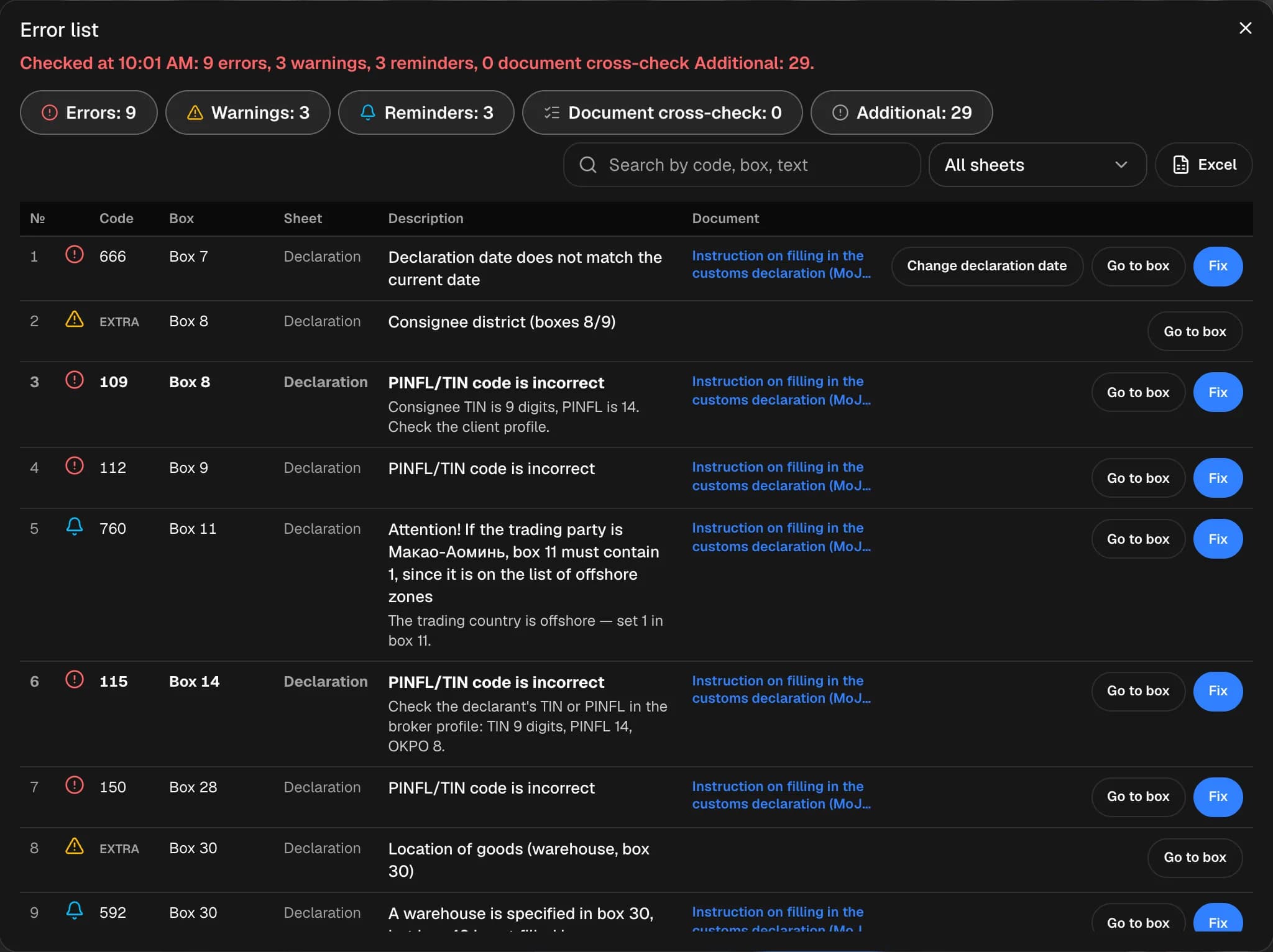
The tabs at the top are remark levels:
- Errors — customs won't accept the declaration while they remain. The most serious (fatal) ones are in bold.
- Warnings — worth checking; they don't hold up export without your decision.
- Reminders — something to attach or do.
- Document cross-check — box values that differ from the deal documents.
- Additional — extra checks by the service; they don't hold up export.
You can search by code, box and text, pick a sheet and export the results to Excel. The same error across many items is shown as one row — "Items No. 1–22".
Fix
Each row has one Fix button:
- for date and exchange rate errors it opens the "New date" window;
- if the error has a fix, it closes the window and puts the cursor in the right field; if the error affects several items, it opens a per-item input window; if it's about rates, the box 47 rates window;
- otherwise it goes to the box.
Clicking a row (or Enter on it) also goes to the box. Document discrepancies also have Open document — the document the value came from.
Alt + ↓ / ↑ — next and previous error right on the boxes screen.
What blocks export
If remarks remain when you download the XML, the Export GTD window opens:
- if there are errors, you can export only with Ignore errors ticked;
- if there are warnings — with Skip warnings ticked;
- reminders don't hold up export.
Fatal errors
Customs won't accept a declaration with fatal errors. Fix them before exporting — the Open the error list button in the window takes you straight to them.